
Introduction
In today’s digital world, almost everything we do requires an online account. From social media and email to banking and shopping, we are constantly asked to create usernames and passwords. As a result, managing multiple passwords has become a daily challenge for most people. This is where a Password Manager becomes extremely useful. A Password Manager helps you store, organize, and protect all your passwords in one secure place. Instead of remembering dozens of complex passwords, you only need to remember one master password.
Many users still rely on weak passwords or reuse the same password across multiple websites. This habit makes them an easy target for cybercriminals. A Password Manager solves this problem by generating strong, unique passwords and saving them securely. It also saves time and reduces stress because you no longer need to reset forgotten passwords again and again.
For beginners, the idea of using a Password Manager may feel confusing or risky at first. However, modern Password Manager tools are designed with strong encryption and user-friendly features. Even intermediate users can benefit by improving their online security and managing digital identities more efficiently. Whether you use the internet for personal tasks or professional work, a Password Manager is no longer optional. It is a smart and necessary tool for staying safe online in an increasingly connected world.
What is Password Manager?
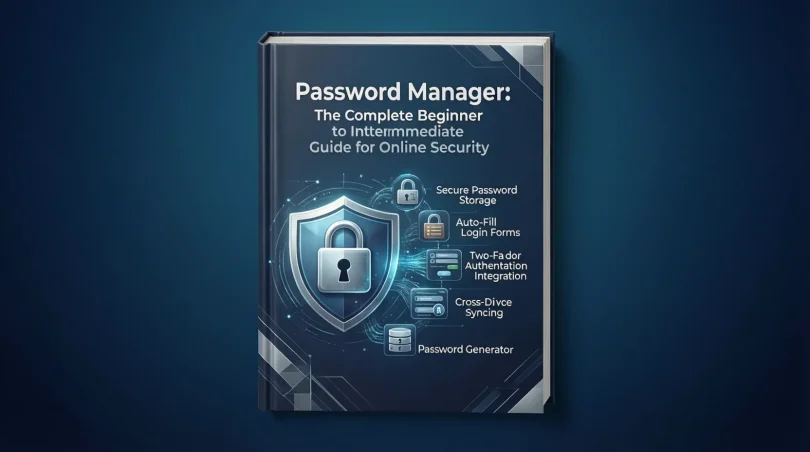
A Password Manager is a software tool that securely stores your login details for websites, apps, and online services. It acts like a digital vault where all your usernames and passwords are kept in encrypted form. You access this vault using one master password that only you know.
Instead of typing passwords manually every time, a Password Manager can automatically fill in your login information. Most Password Manager tools also include password generators that create strong and unique passwords for each account. This reduces the risk of hacking and data breaches.
There are different types of Password Manager solutions available. Some work as browser extensions, while others are standalone apps for desktop and mobile devices. Cloud-based Password Manager tools allow syncing across multiple devices, making them convenient for daily use. Offline Password Manager options store data locally for users who prefer full control.
In simple terms, a Password Manager helps you remember fewer passwords while improving your overall security. It replaces weak habits with smarter, safer practices that protect your digital life.
Why is Password Manager Important?
Online security threats are increasing every year. Hackers use advanced techniques like phishing, malware, and credential stuffing to steal passwords. Using a Password Manager significantly reduces these risks.
One major reason a Password Manager is important is password reuse. Many people use the same password on multiple websites. If one site is hacked, attackers can access other accounts easily. A Password Manager encourages unique passwords for every account.
Another key benefit is protection against weak passwords. Humans often create simple passwords that are easy to guess. A Password Manager generates complex passwords with letters, numbers, and symbols that are difficult to crack.
A Password Manager also saves time and improves productivity. You no longer need to reset forgotten passwords or write them down in unsafe places. Everything is organized and accessible when needed.
For businesses, freelancers, and students, a Password Manager helps manage professional accounts securely. It reduces the chances of data loss and unauthorized access. In a digital age where privacy matters, using a Password Manager is an essential step toward better online safety.
Detailed Step-by-Step Guide
Step 1: Understand Your Needs
Before choosing a Password Manager, identify your requirements. Decide whether you need it for personal use, family sharing, or professional work. Some users need basic features, while others prefer advanced security options.
Consider how many devices you use daily. If you switch between phone, tablet, and computer, device syncing is important. Also, think about whether you want cloud storage or offline access.
Understanding your needs helps you choose the right Password Manager without unnecessary features.
Step 2: Choose a Reliable Password Manager
Selecting a trusted Password Manager is critical. Look for one that uses strong encryption and has a good reputation. User reviews and long-term reliability matter more than flashy features.
Avoid unknown tools with poor security transparency. A good Password Manager clearly explains how your data is protected. It should also offer regular updates to fix security issues.
Make sure the interface is easy to use, especially if you are a beginner.
Step 3: Create a Strong Master Password
The master password is the key to your Password Manager vault. It must be strong and memorable. Avoid using personal information like names or birthdays.
A good master password includes a mix of words, numbers, and symbols. Some users prefer passphrases that are long but easy to remember.
Never share your master password with anyone. This single password protects all others, so keep it private and secure.
Step 4: Install the Password Manager
Once you choose a Password Manager, install it on your devices. Most tools offer apps for Windows, macOS, Android, and iOS. Browser extensions are also available for easy access.
During installation, follow the setup instructions carefully. Enable security features like auto-lock and biometric login if available.
Make sure the Password Manager is updated to the latest version for maximum security.
Step 5: Import or Save Existing Passwords
After setup, start adding your existing passwords. Many Password Manager tools can import passwords from browsers automatically.
If importing is not available, add passwords manually. Organize them using categories or folders for better management.
This step may take some time, but it is a one-time effort that pays off later.
Step 6: Generate Strong Passwords
Use the built-in password generator to create new passwords. These passwords are usually long and complex, making them hard to break.
Replace weak or reused passwords with generated ones gradually. Focus first on important accounts like email and banking.
Let the Password Manager store these passwords so you never have to remember them.
Step 7: Enable Extra Security Features
Most Password Manager tools offer additional security options. Enable two-factor authentication for extra protection.
Auto-lock features ensure the vault closes after inactivity. Alerts for compromised passwords can also improve safety.
Using these features strengthens your overall security system.
Step 8: Use Autofill Safely
Autofill saves time, but use it carefully. Only enable autofill on trusted devices.
Avoid using autofill on public computers. Always lock your device when not in use.
Safe usage habits make your Password Manager even more effective.
Step 9: Regularly Review and Update Passwords
Periodically review your stored passwords. Update old or weak ones.
Delete unused accounts to reduce risk. Keep your Password Manager organized and clean.
Regular maintenance keeps your digital security strong.
Benefits of Password Manager

- Stores all passwords securely in one place
- Generates strong and unique passwords automatically
- Saves time with autofill features
- Reduces risk of hacking and data breaches
- Helps avoid password reuse
- Works across multiple devices
- Improves overall online security habits
- Easy to use for beginners and professionals
Disadvantages / Risks
- Single master password failure can expose data
- Requires trust in the Password Manager provider
- Learning curve for new users
- Some features may require payment
- Risk if device is compromised without proper lock
- Dependence on software availability
Common Mistakes to Avoid
Many users make mistakes when using a Password Manager. One common mistake is choosing a weak master password. This defeats the purpose of secure storage.
Another mistake is ignoring updates. Outdated software may contain vulnerabilities.
Some users also forget to enable extra security features like two-factor authentication. This reduces protection.
Using autofill on shared or public devices is another risky behavior.
Finally, storing the master password in plain text or sharing it with others can compromise security. Avoid these mistakes to get the best results from your Password Manager.
FAQs
What happens if I forget my master password?
If you forget your master password, recovery options are limited. Many Password Manager tools cannot reset it due to encryption. Always store a secure backup or recovery key if available.
Are Password Manager tools safe to use?
Yes, reputable Password Manager tools use strong encryption. They are safer than writing passwords down or reusing weak passwords.
Can I use a Password Manager on multiple devices?
Most modern Password Manager tools support syncing across devices. This allows access from phone, tablet, and computer easily.
Do Password Manager tools work offline?
Some Password Manager options allow offline access. However, syncing requires an internet connection.
Is a free Password Manager enough?
Free versions are suitable for basic needs. Paid versions offer advanced features like sharing and extra security.
Should businesses use Password Manager tools?
Yes, businesses benefit from improved security and controlled access. Many tools offer business-specific features.
Expert Tips & Bonus Points
Use a unique email address for your Password Manager account. This adds an extra layer of security.
Enable biometric login if your device supports it. This improves convenience without reducing safety.
Regularly check security reports within your Password Manager. These alerts help identify weak passwords.
Avoid storing sensitive notes without encryption. Use secure note features properly.
Keep your devices protected with screen locks and antivirus software.
Treat your Password Manager as a critical security tool, not just a convenience app.
Conclusion
A Password Manager is one of the most effective tools for protecting your digital life. As online accounts continue to increase, managing passwords manually becomes unsafe and stressful. A Password Manager simplifies this process by securely storing all your login details in one encrypted vault. It encourages strong password habits and reduces the risk of cyber threats.
For beginners, a Password Manager offers an easy way to improve online security without technical knowledge. Intermediate users benefit from advanced features like syncing, alerts, and password audits. The key is choosing a reliable tool and using it correctly.
By avoiding common mistakes and following best practices, a Password Manager becomes a powerful shield against data breaches and identity theft. It saves time, improves productivity, and brings peace of mind.
In a world where digital safety is essential, adopting a Password Manager is a smart decision. It is not just about convenience, but about taking control of your online security with confidence and responsibility.